Online Event Accessibility Checklist for Creators and Educators
-1690817315934-652794559.png&w=96&q=75)
Benjamin Dell
Founder, HeySummit
An accessible online event is not something you fix in the final reminder email. It starts before registration opens, when you decide what attendees need to know, how they can ask for support, which platform choices matter, and how speakers, captions, materials, live sessions, and replays will work together.
This checklist is for creators, educators, community teams, nonprofits, and small event teams who want a practical operating plan, not a legal memo. Accessibility obligations vary by country, audience, event format, and organization, so treat this as planning guidance rather than legal advice.
Used well, the checklist gives your team one shared place to ask: what does the attendee need before they register, before they join live, while they participate, and after the event becomes a replay?
What accessibility means for an online event
For an online event, accessibility means people can understand the event promise, register, request accommodations, receive clear instructions, join the live session, follow the content, participate where appropriate, and use the replay or materials afterward.
The W3C Web Accessibility Initiative's event checklist covers remote, hybrid, and in-person meetings and recommends planning for accessible materials, media, captions, interpreters, platform access, and speaker preparation. For online event teams, the useful shift is to turn that guidance into an event workflow rather than a scattered set of last-minute tasks.
If you are running an event through an online event platform, the accessibility plan should connect to the surfaces attendees actually touch: the event page, registration form, confirmation emails, session pages, speaker instructions, video provider, support contact, and replay access.
The online event accessibility checklist
Use this table as the working checklist. Add your owner names, deadlines, vendor decisions, and event-specific notes before the registration page goes live.
| Timing | Task | Owner | Where it shows up | Source or caveat |
|---|---|---|---|---|
| Before registration opens | Name an accessibility owner and support contact. | Producer or operations lead | Event page, registration page, support inbox | The NEA recommends making accommodation contact information visible in the website or registration flow. |
| Before registration opens | Publish clear accommodation request instructions. | Operations lead | Registration form, confirmation email, FAQ | Make the request path visible before people commit to attending. |
| Before registration opens | Choose a live-session platform and check its accessibility options. | Technical producer | Video provider, joining instructions, speaker guide | Section508.gov's meeting guidance is useful for platform access, participant prep, and meeting controls. |
| Speaker prep | Ask speakers for accessible slides, handouts, and session materials. | Speaker manager | Speaker instructions, upload workflow, rehearsal notes | W3C recommends preparing accessible materials and sharing them with participants or support providers as needed. |
| Speaker prep | Share guidance on clear audio, readable slides, visual descriptions, and pacing. | Speaker manager | Speaker dashboard, prep email, rehearsal checklist | Accessibility is easier when speakers know expectations early. |
| Attendee communication | Send access instructions before the event, including links, time zone, support contact, and backup options. | Attendee communications owner | Confirmation email, reminder email, event page | Canada's Digital Accessibility Toolkit frames accessible virtual events as a planning timeline, not a day-of task. |
| Live session | Confirm caption, transcript, interpreter, or other communication-access plans where needed. | Technical producer | Video provider, run-of-show, support plan | Harvard's virtual-meeting guidance highlights captions and interpreters as access needs for deaf and hard-of-hearing participants. |
| Live session | Moderate chat and Q&A so important questions or instructions are not trapped in one format. | Moderator | Chat, Q&A, spoken recap, follow-up notes | Repeat or summarize key information when it affects participation. |
| After the event | Publish replay access with captions, transcript notes, materials, support contact, and access window. | Content or replay owner | Replay page, attendee email, on-demand content hub | Do not let the replay become less accessible than the live event. |
Before registration opens
The event page should answer the access questions attendees are likely to have before they sign up. Who should they contact? How do they request accommodations? Will sessions be captioned? Will materials or replays be available? What technology will they need?
The National Endowment for the Arts' virtual-event accessibility guidance recommends including contact information for accommodation requests on the event website or registration page. That is a small detail with a big operational effect: it gives people a path before they have to chase an organizer in private.
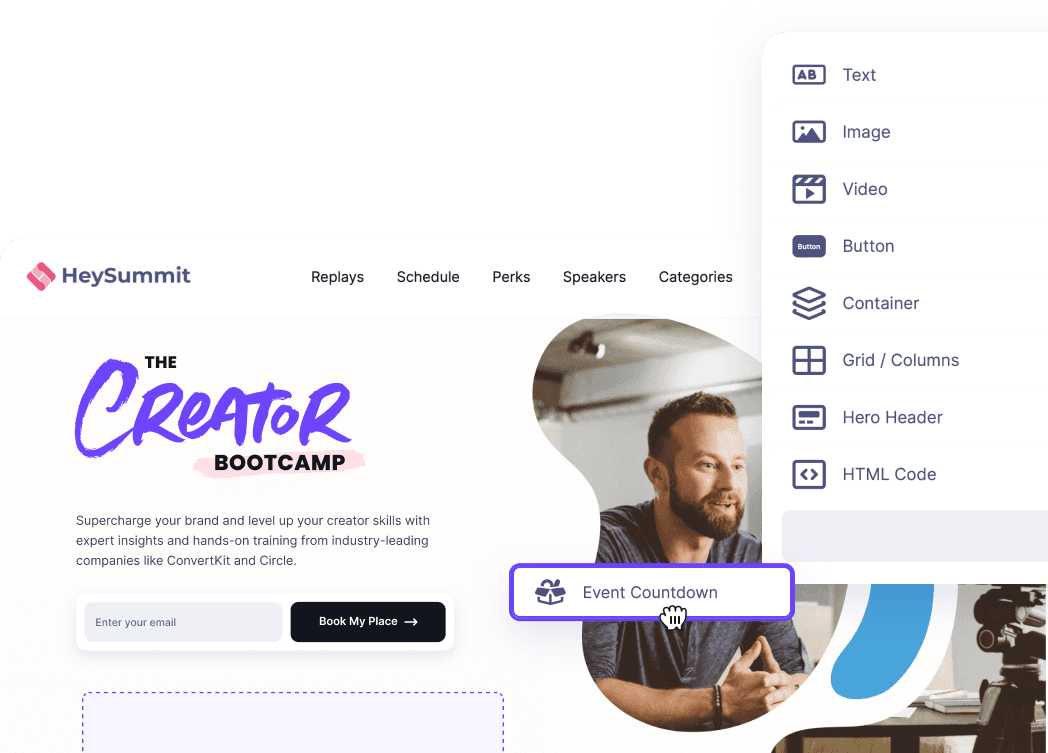
In HeySummit, the event page builder is the natural place to explain the event format, support contact, accommodations process, replay policy, and any access notes that affect registration. Keep the language plain and specific.
Registration and attendee communication
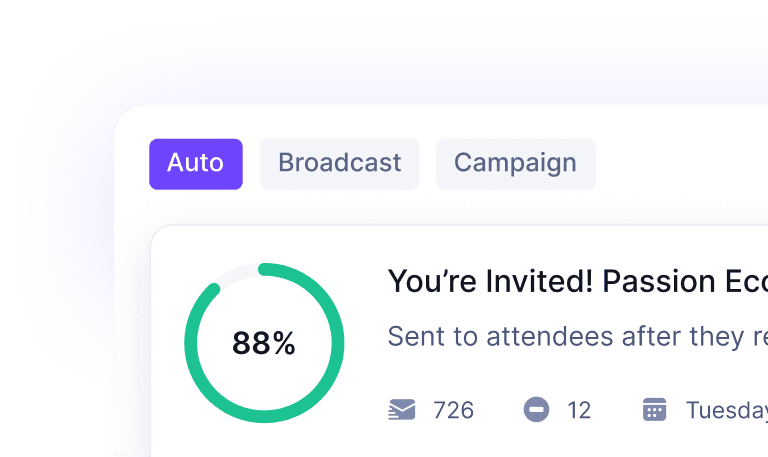
Registration is where the accessibility plan becomes real. Add an accommodation request path, explain what access support is already planned, and collect only the information your team can responsibly use.
The ADA National Network's tip sheet on accessible virtual meetings and events treats accessibility as something to budget and plan from the start. That is the right posture for registration: do not wait for attendees to discover missing information after they have signed up.
At minimum, attendee communications should include:
- Event date, time zone, and joining instructions.
- Accommodation request contact and deadline, if a deadline is needed.
- What access support is already planned, such as captions, transcript timing, interpreters, or materials.
- Any backup access path, such as dial-in details or support instructions.
- Replay availability and what will be included after the live event.
Speaker and content preparation
Accessible sessions are easier when speakers know the expectations before they finish their slides. Ask for readable slides, accessible files, descriptive alt text where relevant, and materials that can be shared with attendees, captioners, or interpreters ahead of time.
The W3C checklist recommends giving speakers accessibility requirements and coordinating materials with participants, interpreters, and captioners before the event. For a creator or educator event, this can be as simple as a speaker prep note that asks for plain-language slide titles, readable font sizes, useful image descriptions, and any handouts in a format attendees can adapt.
A speaker dashboard or speaker workflow helps keep that prep work from turning into a long email thread. The important point is not that software makes materials accessible by itself; it is that the event team has a repeatable place to ask for, review, and update speaker content before the live date.
Video, webinar, and live-session setup
Live accessibility depends on both the event plan and the video provider. Confirm the practical details early: caption or transcript plan, interpreter visibility if interpreters are used, readable screen sharing, moderator instructions, chat and Q&A expectations, backup support contact, and how joining instructions will be communicated.
Section508.gov's accessible-meetings guidance is useful for live-session planning because it focuses on practical meeting behaviors: preparing participants, choosing and using accessible platforms, and thinking through controls before the meeting starts.
Do not imply that the event platform alone solves captions, interpretation, or compliance. Treat those as decisions your team coordinates through the run-of-show, provider setup, speaker prep, and attendee communication plan.
Replay and on-demand access
The accessibility plan does not end when the live session closes. If the event has replays, check whether the recording page, captions, transcripts, materials, access window, and support contact are clear.
The Government of Canada Digital Accessibility Toolkit frames accessible virtual events as a timeline. That timeline should include the after-event experience: people who could not attend live may still need the content in a usable format.
For events with recordings, add these replay checks:
- Replay page title and session descriptions are clear.
- Captions, transcripts, or access notes are available where needed.
- Slides, worksheets, or downloads are usable without relying only on images or inaccessible PDFs.
- Access windows and ticket rules are explained in plain language.
- Support contact remains visible after the live event.
If the event has a longer shelf life, connect the checklist to your on-demand events plan so recordings, materials, and follow-up are not handled as a separate one-off project.
Common mistakes to avoid
- Waiting for requests before planning. Some attendees will not ask if the request path is hidden, unclear, or too late.
- Putting access details only in images or video. Important instructions need readable text.
- Assuming platform defaults are enough. Verify the actual provider setup, attendee experience, and support path.
- Forgetting speakers. Speaker slides, handouts, and delivery choices can make the event easier or harder to access.
- Publishing inaccessible downloads. Avoid treating PDFs, slide decks, or image-heavy handouts as automatically usable.
- Ignoring replays. Recordings need captions, transcripts, labels, materials, access rules, and support information too.
How HeySummit helps organize the workflow
HeySummit should not be framed as a replacement for accessibility expertise, captioning vendors, interpreters, or legal advice. Its role is operational: keeping the event page, registration information, attendee emails, speaker prep, video setup, access rules, and replay plan closer together.
That matters because accessibility failures often happen at handoffs. The event page says one thing, the reminder email says another, the speaker prep is separate, the video settings are checked too late, and the replay is published without the same care as the live event.
When the workflow lives in one place, the team has a better chance of seeing those gaps before attendees do. If you want to see how those pieces fit together, take the HeySummit product tour.
Frequently asked questions
Table of Contents
What accessibility means for an online eventThe online event accessibility checklistBefore registration opensRegistration and attendee communicationSpeaker and content preparationVideo, webinar, and live-session setupReplay and on-demand accessCommon mistakes to avoidHow HeySummit helps organize the workflowFrequently Asked QuestionsTry HeySummit free
HeySummit is the easiest way for creators and educators to grow their audience, authority and revenue with professional online events created in minutes, not weeks.
Share this article on:
Recent Posts
Loading feed...