Virtual Event Run of Show Template: Producer Cue Sheet for Online Summits
-1690817315934-652794559.png&w=96&q=75)
Benjamin Dell
Founder, HeySummit
A live online event rarely fails because the agenda was missing. It usually gets messy because the agenda was not translated into a production plan.
The host knows when the session starts, but the producer is still looking for the right webinar link. The speaker is ready, but nobody has confirmed the slide deck. The sponsor mention is in the agreement, but it is not in the host notes. The replay should be available afterward, but nobody has assigned the recording check.
That is what an event run of show is for. Use the template below to turn your agenda into a minute-by-minute cue sheet for the people running the event behind the scenes.
What is an event run of show?
An event run of show is a production-facing timeline that tells the team what happens, when it happens, who owns it, and what cues or backup steps are needed. It is the operating document for hosts, producers, moderators, speakers, sponsors, and support staff.
It is different from an attendee agenda. The agenda tells attendees what they will experience. The run of show tells the team how to make that experience happen. Bizzabo makes the same distinction in its run-of-show guide for flagship conferences, noting that attendee-facing schedules leave out the backstage details, ownership, and contingency planning the team needs.
For a virtual event or online summit, the run of show should include more than session start times. It should connect speaker handoffs, video or webinar links, attendee access rules, sponsor or offer cues, Q&A, recordings, replays, reminder emails, and follow-up tasks.
Copy this virtual event run-of-show template
Start with this table, then customize it for your event format. If your event has multiple sessions, create one version per session and a master run of show for the full day.
| Time | Duration | Segment | Owner | Speakers or participants | Production cues | Video/webinar link | Assets | Sponsor or offer cue | Q&A/chat cue | Recording/replay check | Backup plan | Notes |
|---|---|---|---|---|---|---|---|---|---|---|---|---|
| 30 min before | 10 min | Producer opens room | Producer | Host, producer | Open webinar room, check recording, verify waiting-room or attendee message | Add host/producer room link | Run-of-show doc, slide deck, speaker contact list | Confirm sponsor mention copy is in host notes | Check chat and Q&A permissions | Recording setting enabled | Use backup room link if primary room fails | Confirm event page and attendee access are live |
| 15 min before | 10 min | Speaker joins green room | Producer | Speaker, host | Audio/video check, confirm name pronunciation, review first handoff | Add green-room or backstage link | Speaker slides, intro bio, backup PDF | Confirm no sponsor conflict in intro | Confirm who moderates questions | Confirm recording owner | Dial-in number or backup presenter | Speaker phone number or emergency contact ready |
| 5 min before | 5 min | Final live check | Host | Host, producer, moderator | Host joins, attendee message checked, slides queued | Add live attendee link | Housekeeping slide, event link, support link | Sponsor logo or verbal mention ready if applicable | Moderator posts welcome prompt | Recording visible to producer | Delay start by 2 minutes if speaker is reconnecting | Producer watches chat for access issues |
| Live start | 3 min | Welcome and housekeeping | Host | Host | Start broadcast, welcome attendees, explain replay and Q&A | Live room | Housekeeping slide | Brief sponsor or partner acknowledgement if promised | Moderator confirms chat is open | Producer confirms recording has started | Post support link if access issues appear | Keep intro tight so speaker has full time |
| 3 min | 2 min | Speaker intro | Host | Host, speaker | Introduce speaker, confirm screen share or video handoff | Live room | Speaker bio, speaker headshot, talk title | None unless sponsored session | Moderator collects early questions | Recording still active | Host fills 60 seconds if speaker reconnects | Use approved bio, not an outdated profile |
| 5 min | 35 min | Main talk or workshop | Speaker | Speaker | Speaker presents; producer watches time, audio, video, and chat | Live room | Slide deck, demo links, downloadable resource | Show sponsor lower-third or offer cue only if agreed | Moderator saves questions for Q&A | Producer checks recording at midway point | Switch to backup slides or recording if speaker loses connection | Send 10-minute and 3-minute private time warnings |
| 40 min | 12 min | Q&A | Moderator | Host, speaker, moderator | Moderator reads questions; host watches timing | Live room | Question list, support link, resource link | Offer or sponsor CTA if relevant and approved | Prioritize questions by relevance and clarity | Recording still active | Move unanswered questions to follow-up email | Keep one final question slot for host wrap |
| 52 min | 5 min | Wrap and next step | Host | Host, speaker | Thank speaker, repeat replay timing, point to next session or CTA | Live room | CTA link, next-session link, replay instructions | Final sponsor mention if promised | Moderator posts links in chat | Recording still active until host closes | Send follow-up email if chat links fail | Do not promise a replay time unless it is ready |
| After session | 15 min | Recording and replay check | Producer | Producer | Stop recording, save file, confirm replay workflow, note issues | Recording location | Recording file, transcript, follow-up email draft | Save sponsor proof if relevant | Export unanswered questions if needed | Replay status confirmed | Use backup recording if primary failed | Log fixes before the next session |
This format works because it combines timing, ownership, production cues, and contingency notes in one place. Rundown Studio's run-of-show and cue-sheet templates show the same expectation: useful templates are spreadsheet-friendly, time-based, and detailed enough for producers to act on during the event.
Filled example for a 60-minute online summit session
Here is a shorter version filled in for a typical summit talk.
| Time | Segment | Owner | Production cue | Backup note |
|---|---|---|---|---|
| -30:00 | Producer setup | Producer | Open room, confirm recording, test host access, check attendee waiting message | Use backup webinar room if primary room is unavailable |
| -15:00 | Speaker check | Producer | Speaker joins, camera/audio checked, slides opened, first handoff reviewed | Host has speaker's backup PDF and phone number |
| 00:00 | Host welcome | Host | Welcome attendees, explain Q&A, mention replay access, introduce session | Producer watches chat for join-link issues |
| 03:00 | Speaker handoff | Host | Introduce speaker and confirm screen share | Host fills if speaker needs to reconnect |
| 05:00 | Main presentation | Speaker | Speaker presents; producer sends private time cues at 25 and 32 minutes | Switch to backup deck or pre-recorded segment if needed |
| 40:00 | Q&A | Moderator | Moderator asks saved questions; host keeps time | Unanswered questions move to follow-up email |
| 52:00 | Wrap and CTA | Host | Thank speaker, point to replay, next session, sponsor, or offer | Post links in chat and follow-up email |
| 60:00 | Post-session check | Producer | Stop recording, confirm file saved, update replay status, log issues | Use backup recording if primary file failed |
Asana's run-of-show template guidance also frames the document as a way to coordinate every detail of an event, which is the useful mental model here: if a cue, link, person, or asset can affect the live experience, it belongs in the run of show.
How to adapt the template by event format
The columns can stay mostly the same, but the details change by format.
Single webinar or workshop
Keep the run of show lightweight. Focus on the host intro, speaker or facilitator handoff, demo timing, chat prompts, Q&A, replay availability, and follow-up email. If you use a tool like Zoom, the Zoom virtual event guide is a useful reminder that technical preparation, webinar setup, and attendee experience all need attention before the live room opens.
Multi-session online summit
Create a session-level run of show for each talk and a master run of show for the full event day. The master version should track opening remarks, session transitions, breaks, sponsor moments, support coverage, replay processing, and what happens if one session overruns.
Paid or VIP event
Add ticket/access checks to the template. The producer should know which sessions are free, paid, VIP-only, replay-only, or bundle-only. Include support notes for attendees who bought the wrong ticket, cannot find access, or need help with payment confirmation.
Sponsored session
Add the sponsor promise directly to the run of show. If the agreement includes a verbal mention, logo placement, sponsored Q&A, offer link, giveaway, or booth reminder, assign the cue to a person and a timestamp. Do not rely on someone remembering it live.
Pre-recorded or replay-heavy event
Add file checks, captions or transcript status, replay publish timing, attendee email timing, and backup playback notes. For replay-driven events, the run of show should not end when the live session ends. It should carry through to post-event access.
Hybrid or in-person component
Add room, stage, AV, check-in, signage, and venue notes. Keep online-attendee cues visible too: stream start, chat moderation, online Q&A, replay capture, and support links.
What to include before the event starts
A good run of show starts before the public start time. For an online event, the pre-show section should include:
- Host, producer, moderator, and support-owner arrival times.
- Speaker join time, green-room link, and backup contact method.
- Webinar, livestream, or video-room links for the team and attendees.
- Slide decks, videos, downloads, offer links, and sponsor copy.
- Ticket or registration access rules.
- Reminder email and calendar-invite checks.
- Recording, caption, transcript, and replay responsibilities.
- Emergency contacts and backup room links.
SpotMe's event run-of-show template reinforces the value of a practical example, not just a definition. The more specific your pre-show rows are, the less the team has to improvise while attendees are already waiting.
Live production roles and handoffs
Every meaningful cue needs an owner. If a row says "post replay link" or "start recording" but nobody owns it, the run of show is still vague.
| Role | Owns | Common handoffs |
|---|---|---|
| Host | Welcome, speaker intro, audience framing, wrap, CTA | Hands to speaker, moderator, sponsor moment, or next session |
| Producer | Room setup, timing, recording, technical cues, backup plan | Signals host, supports speaker, coordinates support/admin |
| Moderator | Chat, Q&A, question selection, audience prompts | Hands selected questions to host or speaker |
| Speaker | Talk delivery, slides, demo, audience teaching | Receives intro from host; hands back for Q&A and wrap |
| Support/admin | Attendee access issues, ticket questions, broken links | Escalates live-impacting issues to producer |
| Sponsor or partner contact | Approved copy, offer link, booth or giveaway details | Confirms deliverable before event and proof after event |
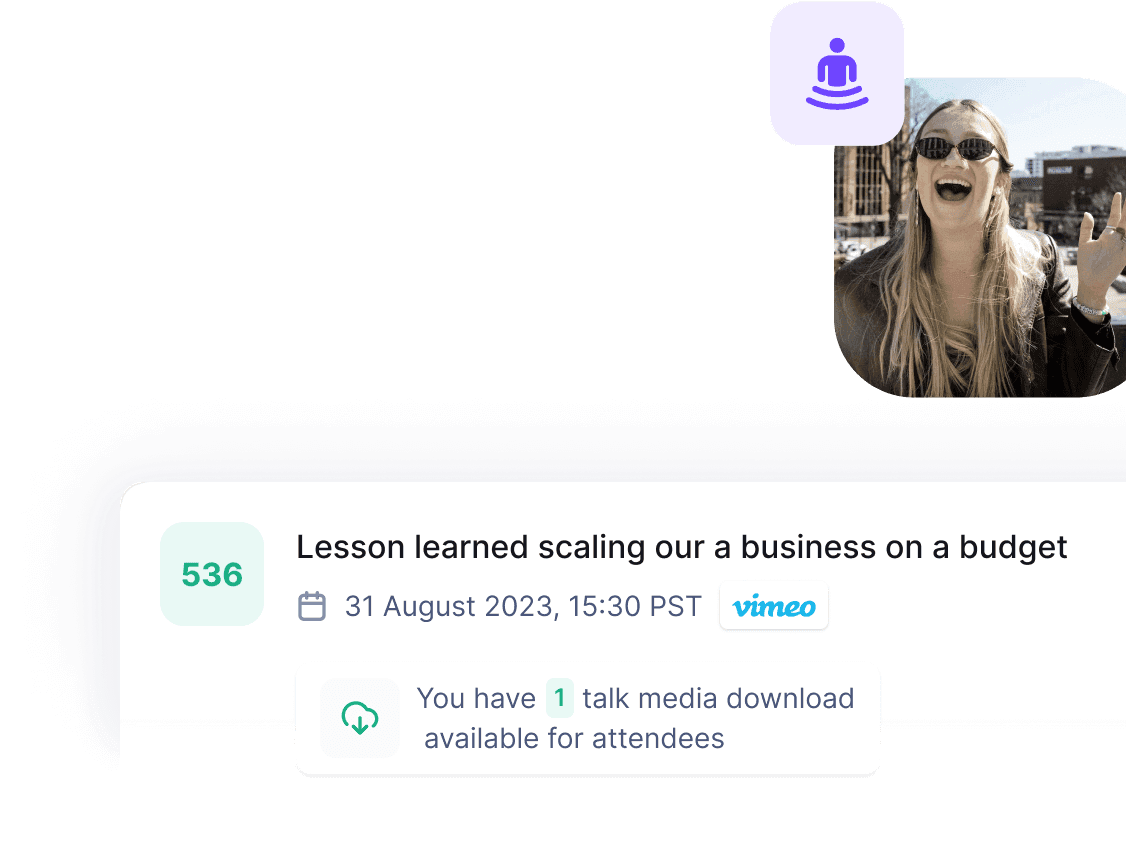
If you run multi-speaker events, keep your speaker information close to the run of show. A speaker dashboard can help reduce the scramble by giving speakers a dedicated place for talk details, profile information, sharing assets, and event participation tasks.
Technical and contingency cues to add
Do not wait until something breaks to decide what the team should do. Add a backup note for the most likely failure points.
| Risk | Run-of-show cue | Backup action |
|---|---|---|
| Speaker is late | Producer confirms at 15 minutes before live | Host extends intro, moves to alternate segment, or plays pre-recorded content |
| Audio or video fails | Producer checks audio/video during green-room setup | Speaker switches device, dial-in, or backup recording |
| Wrong attendee link | Support owner checks event page and reminder email links before live | Post corrected link by email, event page, and support channel |
| Session overruns | Producer sends private time cues | Cut final question, move extra answers to follow-up, protect next session start |
| Slides are missing | Producer verifies slide deck before speaker joins | Use backup PDF, screen share from host, or continue without slides |
| Q&A overflow | Moderator saves unanswered questions | Use follow-up email, replay comments, or a bonus session |
| Recording fails | Producer checks recording at start and midpoint | Use backup recording, platform recording, or speaker copy if available |
Goldcast's virtual event run-of-show resource is another useful reference for treating the run of show as a live-production document, not just a planning checklist. For virtual events, the important thing is that the fallback is visible before the moment gets stressful.
Post-session and replay checks
The run of show should include what happens after the session ends. This is especially important for online summits, paid events, and replay-heavy programs.
Add post-session rows for:
- Recording saved and backed up.
- Replay page or content access updated.
- Speaker thanked and follow-up instructions sent.
- Attendee follow-up email queued.
- Unanswered questions exported or assigned.
- Sponsor proof captured if relevant.
- Attendance, engagement, and revenue notes reviewed.
- Issues logged before the next session.
For events with video providers, make sure the run of show names the exact integration or room owner. HeySummit's video and streaming integrations help organizers connect delivery tools such as webinar and livestream platforms to the wider event workflow, but the human production cues still need to be written down.
How HeySummit helps keep the run of show organized
A run of show is a document, but the work around it lives in your event platform. The cleaner your event setup is, the easier it is to keep the cue sheet accurate.
In HeySummit, organizers can keep the operational pieces of an online event connected: event pages, registration, tickets and access, speaker details, sponsor surfaces, video or webinar integrations, custom emails, replays, and reporting. That means your run of show can point to real event assets instead of a loose collection of spreadsheets, email drafts, payment links, and webinar rooms.
For example:
- Use online event pages and registration flows as the source for attendee-facing details.
- Use custom event emails to align confirmation, reminder, replay, and follow-up instructions with the run of show.
- Use sponsor booth pages or sponsor placements to confirm sponsor cues and proof requirements.
- Use reporting and analytics after the event to review registrations, attendance, content engagement, revenue, and follow-up needs.
Keep the distinction clear: HeySummit can reduce the tool sprawl around your event workflow, but your team still needs to decide who speaks, who produces, who moderates, who handles support, and what happens if the live plan changes.
Final pre-event QA checklist
Run this check 24 hours before the event, then again 30 minutes before going live.
- The run of show has one owner and one current version.
- Every live cue has a named owner.
- Speaker join links, attendee links, and backup links are tested.
- Slides, videos, downloads, sponsor copy, and offer links are final.
- Ticket/access rules are clear for free, paid, VIP, and replay viewers.
- Reminder emails and calendar details match the event page.
- Recording, replay, and transcript responsibilities are assigned.
- The host has approved intros, transitions, sponsor mentions, and closing notes.
- The moderator has Q&A prompts and escalation rules.
- The support owner knows where to send access issues.
- Backup plans exist for late speakers, broken links, bad audio, missing slides, overruns, and recording failure.
If the run of show feels too detailed, that is usually a good sign. Attendees should experience a smooth event. The production team should see all the details that make it smooth.
When you are ready to connect the cue sheet to the rest of your event workflow, see how HeySummit works across event pages, speaker management, video integrations, emails, sponsors, replays, and reporting.
Frequently asked questions
Table of Contents
What is an event run of show?Copy this virtual event run-of-show templateFilled example for a 60-minute online summit sessionHow to adapt the template by event formatWhat to include before the event startsLive production roles and handoffsTechnical and contingency cues to addPost-session and replay checksHow HeySummit helps keep the run of show organizedFinal pre-event QA checklistFrequently Asked QuestionsTry HeySummit free
HeySummit is the easiest way for creators and educators to grow their audience, authority and revenue with professional online events created in minutes, not weeks.
Share this article on:
Recent Posts
Loading feed...