Invite-Only Event Registration: Eligibility Checklist

Benjamin Dell
Founder, HeySummit
A private event link lands in the wrong inbox. Can that person register, buy a ticket or watch the replay? Those are separate questions, and one setting may answer only one of them.
Invite-only event registration means applying your audience eligibility rule at signup. Before you send invitations, decide whether that rule concerns an organization, named people or another requirement. Use the worksheet below to choose the control, then record what actually happens in the test matrix.
Decide what "invite-only" must mean for this event
Write the requirement as an outcome. "Only addresses from our organization can register" asks for something different from "Only these named people may watch confidential recordings." A private page alone does not establish either result.
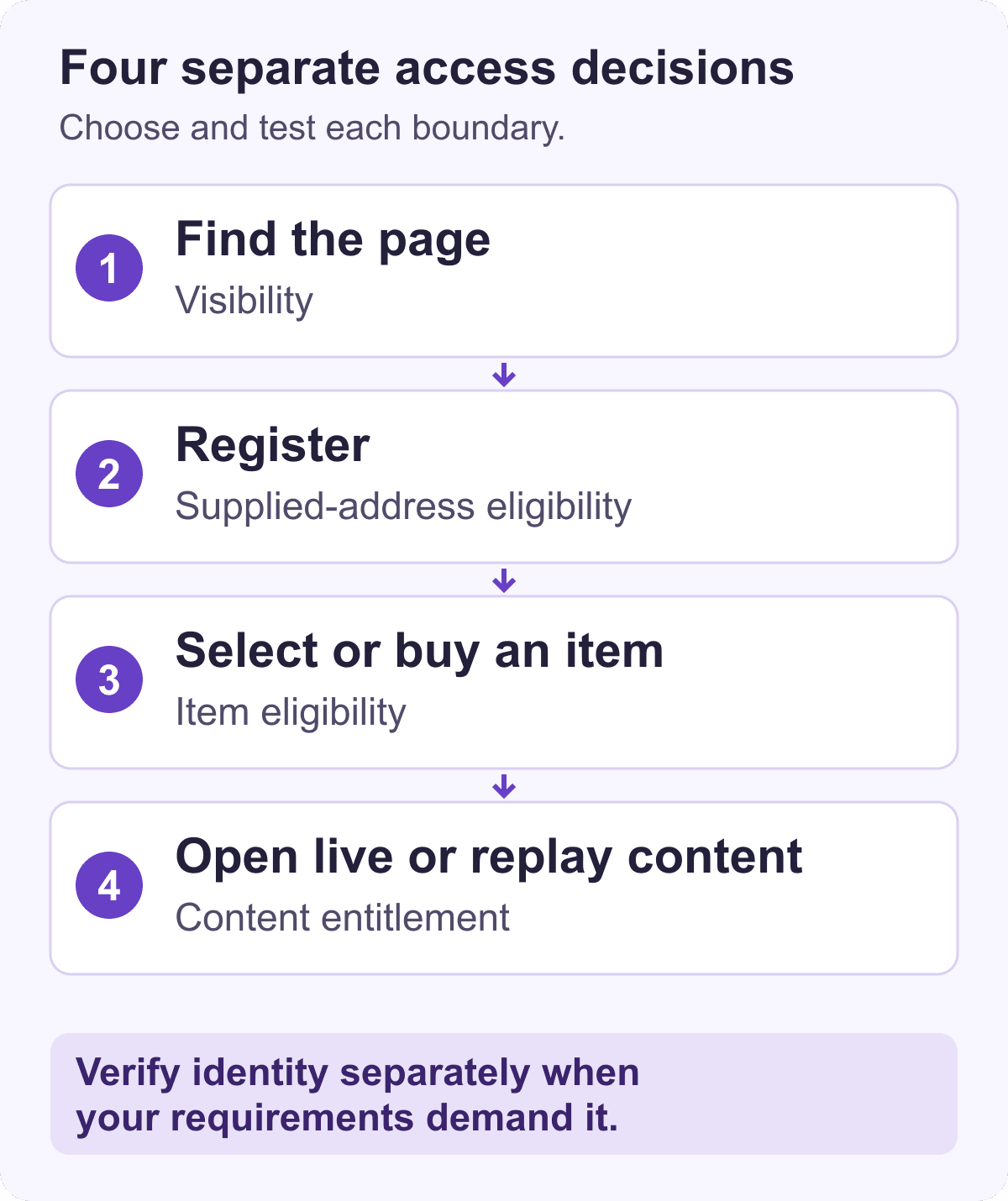
Keep these four boundaries in your handoff:
- Visibility. Who can find the event page?
- Registration eligibility. Who can complete signup under the rules you have chosen?
- Item eligibility. Which tickets, add-ons or donations can that attendee select or buy?
- Content entitlement. Which live sessions or replays does their ticket or account permit them to open?
Eligibility is the rule you set for who qualifies. Entitlement is the access a person has been granted. You need both decisions, even when the same attendee moves through them in one journey. Our definition of private events provides the broader terminology; this checklist focuses on choosing and testing the controls.
Choose the control that matches the requirement
Copy the relevant rows, write down the actual setting or workflow you will use, and add an owner and review date. If you cannot name where the rule takes effect, resolve that before sending the next invitation batch.
Swipe sideways on small screens to read every column. Copy this table into your event handoff document.
| Requirement | Chosen control and boundary | Limitation and acceptance test | Owner / review |
|---|---|---|---|
| Reduce public discovery | Private or unlisted page visibility. | Forwarded URLs can still reach registration. Open the same URL as an uninvited visitor. | |
| Allow a whole organization | Supplied-address domain rule at signup. | Does not prove identity or employment. Test the intended domain, an outside address and a lookalike. | |
| Allow named people only | A workflow verified to enforce the intended named identities. | Suffix rules alone do not establish exact identity matching. Test another address ending with the allowed address. | |
| Restrict one ticket in a public event | Item-level eligibility rule. | Does not restrict the whole event. Test registration and the restricted item separately. | |
| Control live and replay access | Ticket entitlement plus the relevant content and provider settings. | Signup eligibility does not prove playback permission. Test live and replay separately. | |
| Remove an existing person's access | A separately verified attendee, account or entitlement process. | New signup rules are not retrospective revocation. Give the access review a named owner. |
Do not treat a hidden ticket, a shared password, an invitation code or an attendee import as interchangeable controls. Ask what each does when the link or code is shared, who it identifies, and which stage it actually governs. Their presence in a workflow is not proof that your requirement is enforced.
Check whether email screening is enough
Consider a fictional organization using @example.com. Its organizer wants people who supply an address ending in that domain to register, while an address at @example.org is rejected. That is a supplied-address screening requirement.
HeySummit's event signup restriction guide explains that its rules match the end of the supplied email address. Include the leading @ for a domain boundary. A rule of @example.com is more specific than example.com, which can also be the end of a different domain.
That check does not verify the person's identity, employment or current membership. A pasted list of full addresses is still subject to suffix matching. For example, a rule of alex@example.com can also match otheralex@example.com. Include that collision in your acceptance tests if you are considering a named-address list; do not label it exact guest-list enforcement.
If your requirement is "only these verified individuals," "only current members" or "only current employees," confirm a workflow that actually establishes that fact. For confidential content, assess identity and content access requirements together. Use the event registration software checklist to evaluate fit before settling on a platform or configuration.
Apply the relevant HeySummit controls
Use only the controls your requirement calls for. Check that the fields are available in your account before promising the workflow to attendees. The paths below follow HeySummit's current documentation; the tests in the next section are for you to complete in your own setup.
Reduce discovery with private mode
Go to Event Settings > General > Event Basics, enable Is This a Private Event?, then select Save. If the setting is disabled or asks for a plan upgrade, check plan fit first.
HeySummit's private-event guidance explains that this asks supporting search engines not to index or follow event pages and hides standard sharing controls on specified event surfaces. It does not prevent someone with the URL from registering while registration is open, or guarantee immediate removal of an already indexed page.
Review page-builder Social Buttons separately. Also check any configured checkout or confirmation offers rather than assuming private mode removes every promotional element. Choose registration restrictions separately when eligibility matters.
Set whole-event signup rules
Go to Event Settings > Event Experience > Registration & Checkout and find Registration Restrictions.
- Enter allowed rules in Only Allow Emails That Include, one lowercase rule per line. For the fictional domain example, use @example.com.
- Use Reject Emails That Include where an explicit rejection is needed. Either list can be used alone. When both lists are set, the address must satisfy the allow rules and avoid the reject rules. A matching reject rule wins.
- Complete Message to Show When Email Address Isn't Allowed. This explanation is required when either list is used.
- Save, then test the allowed, rejected and conflicting cases.
Despite the field labels, this is an ending match, not a general search anywhere within the address. Keep the suffix and identity limits above in your decision record.
The signup guide also makes an important distinction for an event already underway: changing these rules does not revoke an existing attendee's login or purchased access. If you need to change someone's access, assign a separate review of the appropriate attendee or entitlement process. Do not count a new signup rule as completed removal.
Restrict a ticket, add-on or donation
Go to Ticketing & Payments > Tickets, Add-ons & Donations. Open the relevant tab and item, then Access > Email restrictions. Set the item's allow or reject rules and attendee-facing explanation, then save.
HeySummit's item-level email restriction guide describes these as Advanced Ticketing controls. If the fields are unavailable or disabled, confirm whether your plan includes them. These rules apply to the item without restricting registration for the whole event.
When the attendee's email is known, ineligible items are filtered from ticket, add-on, donation and signed-in purchase views. Before an email is known, an item may appear initially. HeySummit validates the cart before checkout completes and asks an ineligible attendee to change their selection. Test that transition, including a cart that mixes eligible and ineligible items, rather than judging the rule from the first anonymous screen.
Run the eligibility and access test matrix
OWASP's authorization guidance recommends explicit permission checks and tests of the intended access rules. For an organizer, that means checking both the person who should get through and the person who should not, at the stage each rule controls.
The expected results below are a starting point for your configuration, not completed test receipts. Adapt them to your requirements, use test attendees you are authorized to use, and record the actual observation and any correction. Blank observed-result cells mean untested. They do not mean passed.
Swipe sideways on small screens to read every column. Copy this table into your event handoff document.
| Case | Expected result and boundary | Observed result | Owner / action |
|---|---|---|---|
| Intended domain, correct entitlement | Accept the eligible signup and permit only the content included in the chosen ticket. | ||
| Outside domain, forwarded URL | The URL can open. With an event-wide @example.com allow rule, reject the outside-domain signup. | ||
| Both allow and reject rules match | Reject the signup or item selection at the configured boundary. A matching reject rule wins. | ||
| Lookalike domain | An address ending in @example.com.other.org must not satisfy an @example.com rule. | ||
| Named-address suffix collision | If using alex@example.com as a rule, test otheralex@example.com. Do not treat suffix matching as exact named-person enforcement. | ||
| Anonymous visitor selects a restricted item | The item may appear before an email is known. Check that an ineligible address triggers cart correction before checkout completes. | ||
| Mixed eligible and ineligible items | After supplying an email, check tickets, add-ons and donations. Restricted selections must be corrected before checkout completes. | ||
| Signed-in attendee returns to buy | Known-email purchase views should filter ineligible items. Confirm the returning attendee sees the appropriate selection. | ||
| Existing registrant after a signup rule change | Expect the signup rule alone to leave existing login and purchased access intact. Review any required removal separately. | ||
| Allowed signup, no content entitlement | Registration success alone must not be counted as permission to watch. Verify the intended live and replay denial. | ||
| Live access, restricted or expired replay | Confirm the live ticket works and the separately restricted or expired replay follows its own configured rule. | ||
| Recovery on mobile and with a keyboard | The rejection is understandable, the correction or contact path is usable, and the owner can handle a mistaken rejection. |
Record the ticket, signed-in state, rule version and content window alongside each result in your handoff document. For a failed test, name the correction and repeat the affected journey before you send invitations. A successful signup cannot stand in for a successful ticket or playback check.
Use the full prelaunch checklist for the rest of the event journey, including the checks outside this registration and access scope.
Give eligible attendees a way to recover
An eligible attendee might try a personal address instead of the organization address you intended. Tell them what to correct and how to reach the organizer if that does not resolve it. W3C's form-notification guidance calls for clear error messages with simple instructions for resolving the problem.
For the fictional organization-domain event, an organizer could use this message:
Registration is available with your @example.com address. Please check the address you entered and try again. If you believe you should be eligible and still cannot register, contact the event organizer through the help link in your invitation.
Use that wording only when it accurately describes your rule and the invitation includes a working help route. Do not publish an invite list or reveal another person's eligibility. Give one team member responsibility for reviewing mistaken rejections and deciding whether a correction or exception is appropriate. This is an organizer-owned process, not a promise of an automated approval queue.
Check the message and recovery route on a phone and with a keyboard. Make sure someone who gets rejected can understand the next action without completing the blocked checkout.
Review changes before the next invitation batch
Keep one owner for the access decision record. Before each new batch, review changed rules, exceptions, newly added items, feature availability, existing attendees, and the live and replay access windows. Include the relevant video-provider links and settings in that review.
Re-test whichever boundary changed. A new restricted ticket calls for another item-selection and checkout check. A changed replay window calls for a replay check. A rule added after registration opened calls for an explicit decision about people who already have access.
Once those requirements are clear, explore HeySummit's event ticketing to assess the ticket and access options. For the connected setup, registration and attendee workflow, see how HeySummit works.
Frequently asked questions
Table of Contents
Decide what "invite-only" must mean for this eventChoose the control that matches the requirementCheck whether email screening is enoughApply the relevant HeySummit controlsRun the eligibility and access test matrixGive eligible attendees a way to recoverReview changes before the next invitation batchFrequently Asked QuestionsTry HeySummit free
HeySummit is the easiest way for creators and educators to grow their audience, authority and revenue with professional online events created in minutes, not weeks.
Share this article on:
Recent Posts
Loading feed...